title: "构建编辑表单" post_status: publish comment_status: open taxonomy: category: - gutenberg-docs post_tag: - Data Basics - How To Guides - Repos
构建编辑表单
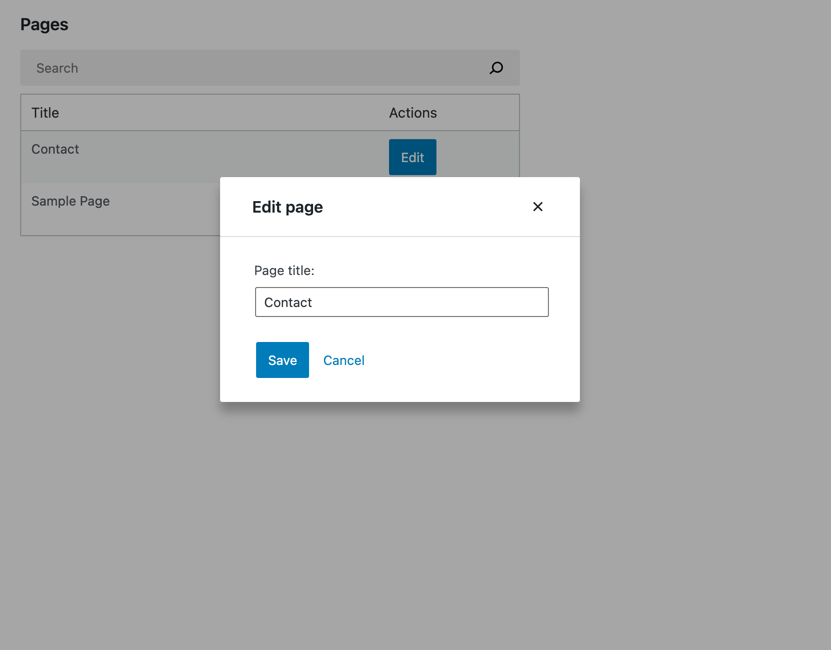
这一部分是关于为我们的应用添加编辑功能。以下是我们将要构建内容的预览:
步骤 1:添加“编辑”按钮
没有“编辑”按钮就无法使用编辑表单,因此让我们从在 PagesList 组件中添加一个开始:
import { Button } from '@wordpress/components';
import { decodeEntities } from '@wordpress/html-entities';

const PageEditButton = () => (
    <Button variant="primary">
        Edit
    </Button>
)

function PagesList( { hasResolved, pages } ) {
    if ( ! hasResolved ) {
        return <Spinner />;
    }
    if ( ! pages?.length ) {
        return <div>No results</div>;
    }

    return (
        <table className="wp-list-table widefat fixed striped table-view-list">
            <thead>
                <tr>
                    <td>Title</td>
                    <td style={{width: 120}}>Actions</td>
                </tr>
            </thead>
            <tbody>
                { pages?.map( ( page ) => (
                    <tr key={page.id}>
                        <td>{ decodeEntities( page.title.rendered ) }</td>
                        <td>
                            <PageEditButton pageId={ page.id } />
                        </td>
                    </tr>
                ) ) }
            </tbody>
        </table>
    );
}
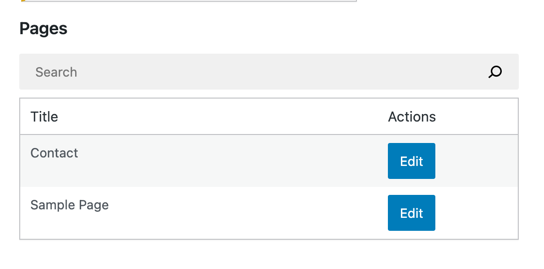
PagesList 中唯一的更改是添加了标记为 Actions 的列:
步骤 2:显示 编辑 表单
我们的按钮看起来不错,但还没有任何功能。要显示编辑表单,我们首先需要一个表单——让我们来创建它:
import { Button, TextControl } from '@wordpress/components';
function EditPageForm( { pageId, onCancel, onSaveFinished } ) {
    return (
        <div className="my-gutenberg-form">
            <TextControl
                __next40pxDefaultSize
                value=''
                label='Page title:'
            />
            <div className="form-buttons">
                <Button onClick={ onSaveFinished } variant="primary">
                    Save
                </Button>
                <Button onClick={ onCancel } variant="tertiary">
                    Cancel
                </Button>
            </div>
        </div>
    );
}
现在,让我们让按钮显示我们刚刚创建的表单。由于本教程不侧重于网页设计,我们将使用一个需要最少代码量的组件将两者连接起来:Modal。让我们相应地更新 PageEditButton:
import { Button, Modal, TextControl } from '@wordpress/components';

function PageEditButton({ pageId }) {
    const [ isOpen, setOpen ] = useState( false );
    const openModal = () => setOpen( true );
    const closeModal = () => setOpen( false );
    return (
        <>
            <Button
                onClick={ openModal }
                variant="primary"
            >
                Edit
            </Button>
            { isOpen && (
                <Modal onRequestClose={ closeModal } title="Edit page">
                    <EditPageForm
                        pageId={pageId}
                        onCancel={closeModal}
                        onSaveFinished={closeModal}
                    />
                </Modal>
            ) }
        </>
    )
}
现在当你点击 Edit 按钮时,应该会看到以下模态框:
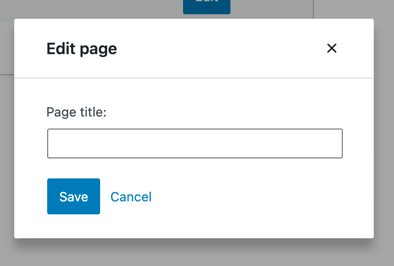
很好!我们现在有了一个基本的用户界面可以操作。
Step 3: Populate the form with page details
We want the EditPageForm to display the title of the currently edited page. You may have noticed that it doesn't receive a page prop, only pageId. That's okay. Gutenberg Data allows us to easily access entity records from any component.
In this case, we need to use the getEntityRecord selector. The list of records is already available thanks to the getEntityRecords call in MyFirstApp, so there won't even be any additional HTTP requests involved – we'll get the cached record right away.
Here's how you can try it in your browser's dev tools:
wp.data.select( 'core' ).getEntityRecord( 'postType', 'page', 9 ); // Replace 9 with an actual page ID
Let's update EditPageForm accordingly:
function EditPageForm( { pageId, onCancel, onSaveFinished } ) {
    const page = useSelect(
        select => select( coreDataStore ).getEntityRecord( 'postType', 'page', pageId ),
        [pageId]
    );
    return (
        <div className="my-gutenberg-form">
            <TextControl
                __next40pxDefaultSize
                label='Page title:'
                value={ page.title.rendered }
            />
            { /* ... */ }
        </div>
    );
}
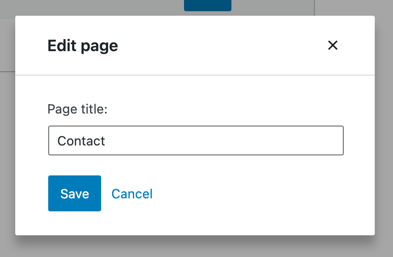
Now it should look like this:
步骤 4:使页面标题字段可编辑
我们的 页面标题 字段存在一个问题:你无法编辑它。它接收一个固定的 value,但在输入时不会更新它。我们需要一个 onChange 处理函数。
你可能在其他 React 应用中见过类似的模式。它被称为 "受控组件":
function VanillaReactForm({ initialTitle }) {
    const [title, setTitle] = useState( initialTitle );
    return (
        <TextControl
            __next40pxDefaultSize
            value={ title }
            onChange={ setTitle }
        />
    );
}
在 Gutenberg Data 中更新实体记录与此类似,但不是使用 setTitle 存储在本地(组件级别)状态,而是使用 editEntityRecord 操作,该操作将更新存储在 Redux 状态中。以下是如何在浏览器的开发者工具中尝试它:
// 我们需要一个有效的页面 ID 来调用 editEntityRecord,所以让我们使用 getEntityRecords 获取第一个可用的 ID。
const pageId = wp.data.select( 'core' ).getEntityRecords( 'postType', 'page' )[0].id;

// 更新标题
wp.data.dispatch( 'core' ).editEntityRecord( 'postType', 'page', pageId, { title: 'updated title' } );
此时,你可能会问 editEntityRecord 比 useState 好在哪里?答案是它提供了一些你无法通过其他方式获得的功能。
首先,我们可以像检索数据一样轻松地保存更改,并确保所有缓存都将正确更新。
其次,通过 editEntityRecord 应用的更改可以通过 undo 和 redo 操作轻松撤销。
最后,因为更改存在于 Redux 状态中,它们是“全局的”,可以被其他组件访问。例如,我们可以让 PagesList 显示当前正在编辑的标题。
关于最后一点,让我们看看当我们使用 getEntityRecord 访问刚刚更新的实体记录时会发生什么:
wp.data.select( 'core' ).getEntityRecord( 'postType', 'page', pageId ).title
它没有反映编辑内容。这是怎么回事?
嗯,<PagesList /> 渲染的是 getEntityRecord() 返回的数据。如果 getEntityRecord() 反映了更新后的标题,那么用户在 TextControl 中键入的任何内容也会立即显示在 <PagesList /> 中。这不是我们想要的。在用户决定保存之前,编辑内容不应泄漏到表单外部。
Gutenberg Data 通过区分 实体记录 和 已编辑的实体记录 来解决这个问题。实体记录 反映来自 API 的数据,忽略任何本地编辑,而 已编辑的实体记录 则在此基础上应用了所有本地编辑。两者同时存在于 Redux 状态中。
让我们看看如果调用 getEditedEntityRecord 会发生什么:
wp.data.select( 'core' ).getEditedEntityRecord( 'postType', 'page', pageId ).title
// "updated title"
wp.data.select( 'core' ).getEntityRecord( 'postType', 'page', pageId ).title
// { "rendered": "
As you can see, the `title` of an Entity Record is an object, but the `title` of an Edited Entity record is a string.

This is no accident. Fields like `title`, `excerpt`, and `content` may contain [shortcodes](https://developer.wordpress.org/apis/handbook/shortcode/) or [dynamic blocks](/docs/how-to-guides/block-tutorial/creating-dynamic-blocks), which means they can only be rendered on the server. For such fields, the REST API exposes both the `raw` markup _and_ the `rendered` string. For example, in the block editor, `content.rendered` could used as a visual preview, and `content.raw` could be used to populate the code editor.

So why is the `content` of an Edited Entity Record a string? Since JavaScript is not be able to properly render arbitrary block markup, it stores only the `raw` markup without the `rendered` part. And since that's a string, the entire field becomes a string.

We can now update `EditPageForm` accordingly. We can access the actions using the [`useDispatch`](/packages/data/README#usedispatch) hook similarly to how we use `useSelect` to access selectors:

```js
import { useDispatch } from '@wordpress/data';

function EditPageForm( { pageId, onCancel, onSaveFinished } ) {
    const page = useSelect(
        select => select( coreDataStore ).getEditedEntityRecord( 'postType', 'page', pageId ),
        [ pageId ]
    );
    const { editEntityRecord } = useDispatch( coreDataStore );
    const handleChange = ( title ) => editEntityRecord( 'postType', 'page', pageId, { title } );

    return (
        <div className="my-gutenberg-form">
            <TextControl
                __next40pxDefaultSize
                label="Page title:"
                value={ page.title }
                onChange={ handleChange }
            />
            <div className="form-buttons">
                <Button onClick={ onSaveFinished } variant="primary">
                    Save
                </Button>
                <Button onClick={ onCancel } variant="tertiary">
                    Cancel
                </Button>
            </div>
        </div>
    );
}
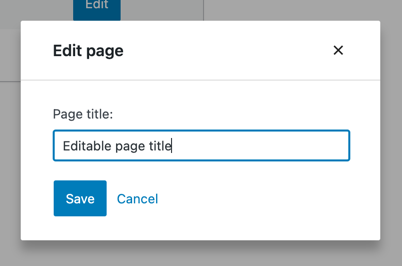
We added an onChange handler to keep track of edits via the editEntityRecord action and then changed the selector to getEditedEntityRecord so that page.title always reflects the changes.
This is what it looks like now:
步骤 5:保存表单数据
现在我们已经可以编辑页面标题,接下来还需要确保能够保存它。在 Gutenberg 数据系统中,我们使用 saveEditedEntityRecord 操作将更改保存到 WordPress REST API。它会发送请求、处理结果,并更新 Redux 状态中的缓存数据。
你可以在浏览器的开发者工具中尝试以下示例:
// 将 9 替换为实际的页面 ID
wp.data.dispatch( 'core' ).editEntityRecord( 'postType', 'page', 9, { title: 'updated title' } );
wp.data.dispatch( 'core' ).saveEditedEntityRecord( 'postType', 'page', 9 );
以上代码片段保存了一个新标题。与之前不同,现在 getEntityRecord 会反映出更新后的标题:
// 将 9 替换为实际的页面 ID
wp.data.select( 'core' ).getEntityRecord( 'postType', 'page', 9 ).title.rendered
// "updated title"
实体记录会在 REST API 请求完成后立即更新,以反映所有已保存的更改。
这是带有可用保存按钮的 EditPageForm 组件:
function EditPageForm( { pageId, onCancel, onSaveFinished } ) {
    // ...
    const { saveEditedEntityRecord } = useDispatch( coreDataStore );
    const handleSave = () => saveEditedEntityRecord( 'postType', 'page', pageId );

    return (
        <div className="my-gutenberg-form">
            {/* ... */}
            <div className="form-buttons">
                <Button onClick={ handleSave } variant="primary">
                    Save
                </Button>
                {/* ... */}
            </div>
        </div>
    );
}
它已经可以工作,但还有一个问题需要修复:表单模态框不会自动关闭,因为我们从未调用 onSaveFinished。幸运的是,saveEditedEntityRecord 返回一个 Promise,该 Promise 会在保存操作完成后解析。让我们在 EditPageForm 中利用这一点:
function EditPageForm( { pageId, onCancel, onSaveFinished } ) {
    // ...
    const handleSave = async () => {
        await saveEditedEntityRecord( 'postType', 'page', pageId );
        onSaveFinished();
    };
    // ...
}
Step 6: Handle errors
We optimistically assumed that a save operation would always succeed. Unfortunately, it may fail in many ways:
- The website can be down
- The update may be invalid
- The page could have been deleted by someone else in the meantime
To tell the user when any of these happens, we have to make two adjustments. We don't want to close the form modal when the update fails. The promise returned by saveEditedEntityRecord is resolved with an updated record only if the update actually worked. When something goes wrong, it resolves with an empty value. Let's use it to keep the modal open:
function EditPageForm( { pageId, onSaveFinished } ) {
    // ...
    const handleSave = async () => {
        const updatedRecord = await saveEditedEntityRecord( 'postType', 'page', pageId );
        if ( updatedRecord ) {
            onSaveFinished();
        }
    };
    // ...
}
Great! Now, let's display an error message. The failure details can be grabbed using the getLastEntitySaveError selector:
// Replace 9 with an actual page ID
wp.data.select( 'core' ).getLastEntitySaveError( 'postType', 'page', 9 )
Here's how we can use it in EditPageForm:
function EditPageForm( { pageId, onSaveFinished } ) {
    // ...
    const { lastError, page } = useSelect(
        select => ({
            page: select( coreDataStore ).getEditedEntityRecord( 'postType', 'page', pageId ),
            lastError: select( coreDataStore ).getLastEntitySaveError( 'postType', 'page', pageId )
        }),
        [ pageId ]
    )
    // ...
    return (
        <div className="my-gutenberg-form">
            {/* ... */}
            { lastError ? (
                <div className="form-error">
                    Error: { lastError.message }
                </div>
            ) : false }
            {/* ... */}
        </div>
    );
}
Great! EditPageForm is now fully aware of errors.
Let's see that error message in action. We'll trigger an invalid update and let it fail. The post title is hard to break, so let's set a date property to -1 instead – that's a guaranteed validation error:
function EditPageForm( { pageId, onCancel, onSaveFinished } ) {
    // ...
    const handleChange = ( title ) => editEntityRecord( 'postType', 'page', pageId, { title, date: -1 } );
    // ...
}
Once you refresh the page, open the form, change the title, and hit save, you should see the following error message:
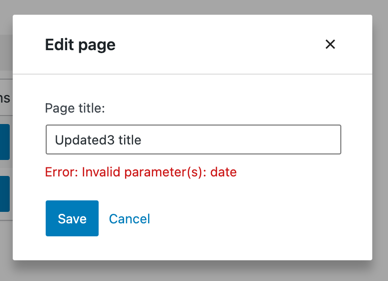
Fantastic! We can now restore the previous version of handleChange and move on to the next step.
步骤 7:状态指示器
我们的表单还存在最后一个问题:缺乏视觉反馈。在表单消失或显示错误消息之前,我们无法完全确定保存按钮是否生效。
我们将解决这个问题,并向用户传达两种状态:保存中_和_未检测到更改。相关的选择器是 isSavingEntityRecord 和 hasEditsForEntityRecord。与 getEntityRecord 不同,它们从不发出任何 HTTP 请求,只返回当前实体记录的状态。
让我们在 EditPageForm 中使用它们:
function EditPageForm( { pageId, onSaveFinished } ) {
    // ...
    const { isSaving, hasEdits, /* ... */ } = useSelect(
        select => ({
            isSaving: select( coreDataStore ).isSavingEntityRecord( 'postType', 'page', pageId ),
            hasEdits: select( coreDataStore ).hasEditsForEntityRecord( 'postType', 'page', pageId ),
            // ...
        }),
        [ pageId ]
    )
}
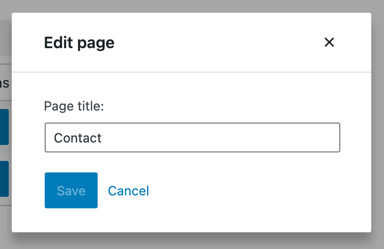
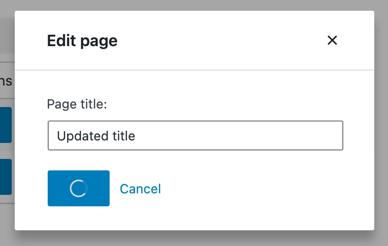
现在我们可以使用 isSaving 和 hasEdits 在保存进行时显示加载动画,并在没有编辑时使保存按钮变灰:
function EditPageForm( { pageId, onSaveFinished } ) {
    // ...
    return (
        // ...
        <div className="form-buttons">
            <Button onClick={ handleSave } variant="primary" disabled={ ! hasEdits || isSaving }>
                { isSaving ? (
                    <>
                        <Spinner/>
                        Saving
                    </>
                ) : 'Save' }
            </Button>
            <Button
                onClick={ onCancel }
                variant="tertiary"
                disabled={ isSaving }
            >
                Cancel
            </Button>
        </div>
        // ...
    );
}
请注意,当没有编辑或页面当前正在保存时,我们会禁用保存按钮。这是为了防止用户意外地多次按下按钮。
此外,@wordpress/data 不支持中断正在进行的保存操作,因此我们也根据条件禁用了取消按钮。
以下是实际效果:
Wiring it all together
All the pieces are in place, great! Here’s everything we built in this chapter in one place:
import { useDispatch } from '@wordpress/data';
import { Button, Modal, TextControl } from '@wordpress/components';

function PageEditButton( { pageId } ) {
    const [ isOpen, setOpen ] = useState( false );
    const openModal = () => setOpen( true );
    const closeModal = () => setOpen( false );
    return (
        <>
            <Button onClick={ openModal } variant="primary">
                Edit
            </Button>
            { isOpen && (
                <Modal onRequestClose={ closeModal } title="Edit page">
                    <EditPageForm
                        pageId={ pageId }
                        onCancel={ closeModal }
                        onSaveFinished={ closeModal }
                    />
                </Modal>
            ) }
        </>
    );
}

function EditPageForm( { pageId, onCancel, onSaveFinished } ) {
    const { page, lastError, isSaving, hasEdits } = useSelect(
        ( select ) => ( {
            page: select( coreDataStore ).getEditedEntityRecord( 'postType', 'page', pageId ),
            lastError: select( coreDataStore ).getLastEntitySaveError( 'postType', 'page', pageId ),
            isSaving: select( coreDataStore ).isSavingEntityRecord( 'postType', 'page', pageId ),
            hasEdits: select( coreDataStore ).hasEditsForEntityRecord( 'postType', 'page', pageId ),
        } ),
        [ pageId ]
    );

    const { saveEditedEntityRecord, editEntityRecord } = useDispatch( coreDataStore );
    const handleSave = async () => {
        const savedRecord = await saveEditedEntityRecord( 'postType', 'page', pageId );
        if ( savedRecord ) {
            onSaveFinished();
        }
    };
    const handleChange = ( title ) =>  editEntityRecord( 'postType', 'page', page.id, { title } );

    return (
        <div className="my-gutenberg-form">
            <TextControl
                __next40pxDefaultSize
                label="Page title:"
                value={ page.title }
                onChange={ handleChange }
            />
            { lastError ? (
                <div className="form-error">Error: { lastError.message }</div>
            ) : (
                false
            ) }
            <div className="form-buttons">
                <Button
                    onClick={ handleSave }
                    variant="primary"
                    disabled={ ! hasEdits || isSaving }
                >
                    { isSaving ? (
                        <>
                            <Spinner/>
                            Saving
                        </>
                    ) : 'Save' }
                </Button>
                <Button
                    onClick={ onCancel }
                    variant="tertiary"
                    disabled={ isSaving }
                >
                    Cancel
                </Button>
            </div>
        </div>
    );
}